How to Fix Windows 7
Temp Issue on Workgroup and Domain Environment
1) Before do anything, restart the computer 2 or 3 times to
see whether it’s going back to your old correct profile. Go to next step if
this doesn’t work.
2) Rename the temp profile registry and revert back the old registry
settings for the correct profile. This method works most of the time for me in
Workgroup and domain environment.
a) Log in with temp profile.
b) Start registry editor by typing regedit in find box of Windows 7.
c) Navigate the following location.
b) Start registry editor by typing regedit in find box of Windows 7.
c) Navigate the following location.

d) You will see similar keys under profile
list, but one with .bak, as shown below

e) The key with .bak is for the correct old
profile. Currently your Windows 7 computer logged in with fresh (temporary)
profile with same key. So, rename the new profile key ( which is not
having.bak) and remove .bak from correct profile key. See below.

f) That’s it. Log off and log in (or
restart) with your user name and password. You must get your correct profile
with icons and profile settings back in Windows 7, if you are lucky enough.
Still if Windows 7 computer loads with temporary profile and creates a
registry key with .bak, that means user profile is really corrupted and
Operating System is not reading it properly.
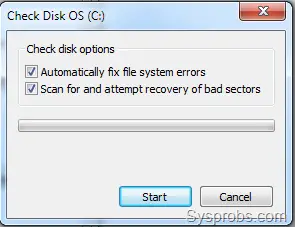
3) Few times this method worked for me, repair the
corrupted files. Usually the corrupted ‘Ntuser’ files
cause this issue. So, run the check disk for partition which is having user
profile.

After restarting for check disk, if you see corrupted entries and
repairing process inside your user profile folder, then you can hope for good
news here. If it finds and repairs any files especially Ntuser files, you may
get your old Windows 7 profile back.
If above steps do not help you out, then we need to create a new profile
with new user name.
4) Create new user name in non domain (workgroup
environment) from control panel or computer management. Make sure to add
the new user to administrators group.ogin with new user name and start copying your old data from old
profile. I normally copy below data,
a) My Documents (Music, videos and downloads)
b) Desktop
c) Favorites
d) Any outlook PST files
b) Desktop
c) Favorites
d) Any outlook PST files
5) New user profile in domain environment.
Since we can’t delete and create new domain user account for this
purpose, we will play around with client computer only. Let’s completely remove
the user profile and re create again.
Copy the important user data (a to d in above step 4) or entire folders
from corrupted profile to new location. Double-check that you have copied all
required folders and files from old profile, because we are going to delete it
now.
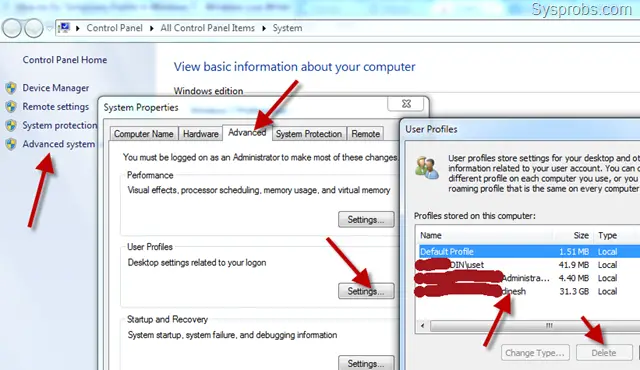
Go to Advanced settings of System as
shown below, click on Settings (user profiles), select
the corrupted user profile which is not loading properly in Windows 7, then
press Delete button. Delete button will be enabled only
if you login with different user account.

This will remove the entire user profile and related user SID from
computer including the registery keys we talked about earlier. You can cross
check the proper removal of user account (SID) by checking the C:\Usersfolder.
Once it is remove properly, restart the computer and login with same user name
(which was not loading earlier). The computer should create a new user profile
as this is the first time the user is logging on. You need to copy back your
old important data to new profile and set email outlook etc..if required.
I hope these tips help to fix temporary profile issue on Windows 7.